
Instagram Content Calendar: How to Plan Your Feed Like a Pro (2026)
Stop scrambling for post ideas at the last minute. A solid Instagram content calendar keeps your feed consistent, your audience engaged, and your stress levels low. Here is how to build one from scratch.
Why You Need a Content Calendar for Instagram
Posting to Instagram without a plan is like cooking without a recipe. You might get lucky once, but consistency is what builds an audience. An Instagram content calendar solves the three biggest problems creators and social media managers face:
- • No more last-minute panic. When you plan a week or month ahead, you always know what is going live next. No more staring at a blank caption screen at 9 PM.
- • Consistent posting frequency. The Instagram algorithm rewards accounts that post regularly. A calendar helps you maintain a steady rhythm -- whether that is three times a week or once a day.
- • Strategic content mix. Without a plan, most creators default to posting whatever feels easy. A calendar forces you to balance educational posts, behind-the-scenes content, promotional material, and community engagement.
- • Better visual cohesion. When you can see upcoming posts side by side, you catch clashing colors and repetitive compositions before they go live. This is why pairing a content calendar with a grid planner is so powerful.
Bottom line: creators who use a content calendar post 60% more consistently and spend less time per post because the thinking is separated from the doing.
What to Include in Your Instagram Content Calendar
A useful content calendar goes beyond just dates and captions. Here are the elements that make the difference between a calendar you actually use and one you abandon after a week:
Post Types
Tag every post as a specific format: single image, carousel, Reel, or Story. This helps you track your content mix. A balanced feed in 2026 typically includes 40% carousels (highest reach), 30% Reels (algorithm boost), 20% single images (brand aesthetic), and 10% Stories (engagement and polls). See also: How to Plan Instagram Reels, Stories & Highlights.
Content Pillars and Themes
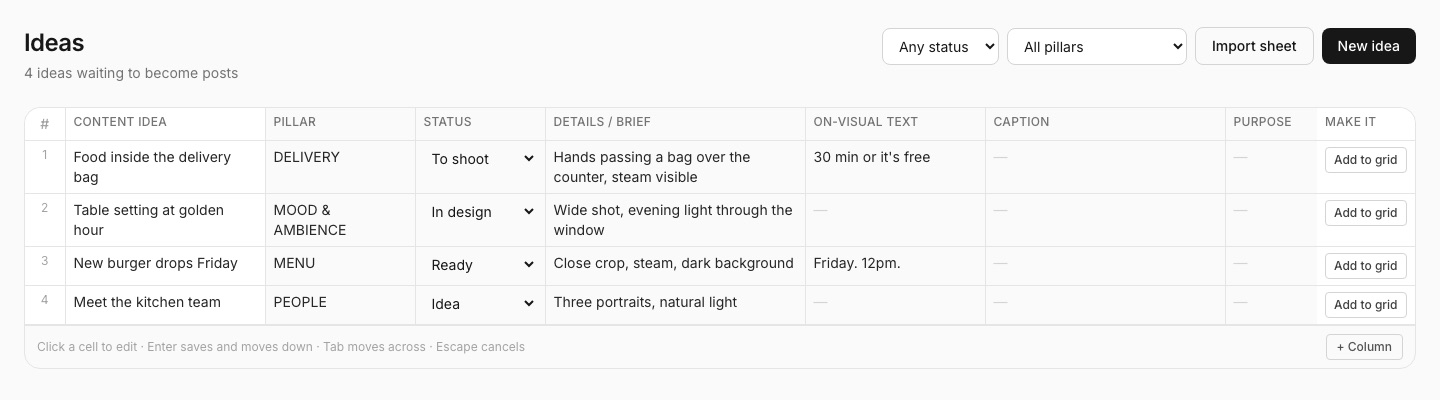
Define 3-5 content pillars -- recurring themes that your audience expects. For example, a fitness brand might use: Workout Tips, Meal Prep, Client Transformations, Motivation, and Product Features. Assign one pillar to each post slot in your calendar so nothing gets neglected.
Posting Times
Your calendar should include specific days and times. Check Instagram Insights for when your audience is most active, then lock those slots into your schedule. Most accounts see peak engagement between 11 AM-1 PM and 7-9 PM in their audience's local timezone.
Captions and Hashtags
Write captions ahead of time -- even rough drafts. This turns posting day into a quick review-and-publish instead of a writing session. Store your hashtag sets alongside each post so everything is ready to copy and paste.
Visual Notes
Note the dominant colors, mood, and composition style for each post. This is especially important when you are planning your grid aesthetic. A post might be great content but visually clash with the posts around it.
How to Build Your Instagram Content Calendar in 4 Steps
- 1
Audit Your Current Content
Before building forward, look back. Review your last 30 posts and note which formats performed best, which content pillars are over- or under-represented, and where you had gaps in your posting schedule. This data gives you a baseline so your calendar is grounded in reality, not guesswork.
- 2
Set Your Posting Frequency and Slots
Decide how many times per week you will post and lock in the days and times. Be realistic -- it is better to commit to three posts per week and actually do it than to plan seven and burn out by Wednesday. Block out your posting slots on the calendar first, then fill them in.
- 3
Batch Your Content Creation
Dedicate one or two sessions per week to creating all your content at once. Shoot photos, edit images, write captions, and select hashtags in focused blocks. Batching is dramatically faster than creating one post at a time because you stay in the same creative headspace. Upload everything to your grid planner so you can arrange and preview the visual flow before anything goes live.
- 4
Schedule and Set Reminders
Once your content is ready, schedule each post for its assigned time slot. The best Instagram content calendars send you a reminder before each post goes live so you can do a final review, tweak the caption, and publish with confidence. This last step turns your plan into action.
How PlanMyGrid's Content Calendar Works
Most content calendar tools are disconnected from your grid. You plan your schedule in one app, then switch to another to preview your feed layout. PlanMyGrid combines both into a single workflow, so your posting schedule and grid aesthetic stay in sync.
Schedule Posts Visually
Assign a date and time to any post in your grid. You see both the calendar view and the grid preview at the same time, so you know exactly what your feed will look like on any given day.
Email Reminders
Get an email reminder before each scheduled post goes live. The reminder includes your image, caption, and hashtags so you can review everything without opening the app.
Drag to Reschedule
Plans change. Drag any scheduled post to a new date and the rest of your calendar adjusts automatically. No need to manually update times or reorder your grid -- it all stays in sync.
Week and Month Views
Switch between week and month views to zoom in on your immediate schedule or plan further ahead. The month view is perfect for spotting gaps in your posting frequency before they happen.
The content calendar is available on the Pro plan alongside unlimited grids, AI captions, and all the features that make PlanMyGrid the most complete grid planner for Instagram.
Free Content Calendar Framework to Get Started
You do not need a fancy tool to start planning. Here is a simple framework you can use this week, whether you manage it in a spreadsheet, a notes app, or inside PlanMyGrid:
The 3-Pillar Weekly Template
Pick your three strongest content pillars and assign each one to specific days. Here is a sample week for a brand posting four times:
| Day | Pillar | Format | Time |
|---|---|---|---|
| Monday | Educational | Carousel | 12:00 PM |
| Wednesday | Behind the Scenes | Reel | 7:00 PM |
| Friday | Community | Single Image | 11:00 AM |
| Sunday | Promotional | Carousel | 6:00 PM |
Monthly Planning Checklist
At the start of each month, spend 30 minutes running through this checklist:
- • Review last month's top-performing posts and double down on what worked
- • Mark any holidays, launches, or events that need dedicated content
- • Fill in your content pillars for each posting slot
- • Schedule at least one batch content creation session
- • Preview your planned grid to check for visual balance
Quick-Start Caption Framework
For each post, draft your caption using this structure: Hook (first line that stops the scroll), Value (the main insight, tip, or story), and CTA (a question or action for your audience). Keep hooks under 125 characters so they are fully visible in the feed without tapping "more." If you need help generating captions, PlanMyGrid's AI caption writer can create on-brand captions from a simple prompt.
Start Planning Your Instagram Content Calendar
Plan your grid, schedule your posts, and get reminders before it is time to publish. PlanMyGrid is free to start -- no credit card, no time limit.
Launch PlanMyGrid Free