
How do social media agencies collect photos and videos from clients?
The most reliable way for a social media agency to collect photos and videos from a client is a dedicated upload link: one page per request, no account for the client, and the files land directly in that client's media library. Email, WhatsApp and shared folders all work, but each one leaves you sorting, renaming and re-uploading files before they reach the plan. PlanMyGrid Studio and Agency include client upload links built for exactly this job.
The short answer
- • Make one request per shoot or month, with a clear shot list and a due date.
- • Send a link, not a folder. The client should not need an account, an app, or your folder structure.
- • File on arrival. Uploads should land in that client's library, not in your inbox.
- • Send finished work back the same way: a delivery link with a password and an expiry date.
Why do email, WhatsApp and shared folders cause problems?
Each common method gets the file from the client to someone. None of them gets the file to the right place. Somebody on your team still has to find it, save it, rename it and upload it into the tool where the grid is planned. With five or ten clients, that step is where files go missing.
Here is how the usual methods compare:
| Method | Client needs an account? | File quality | Where files end up | The catch |
|---|---|---|---|---|
| Email attachments | No | Original files | Your inbox, mixed with everything else | Gmail caps attachments at 25 MB per message, so videos turn into Drive links |
| WhatsApp or iMessage | Needs the app | WhatsApp compresses unless sent in HD or as a document | A chat thread on one person's phone | Files never reach the team without a second step |
| Shared Google Drive or Dropbox folder | Usually (Dropbox File Requests do not need one) | Original files | A folder you then sort by hand | Folder sprawl across clients; no link back to the plan |
| WeTransfer and similar | No | Original files | A download link that expires | You download, then upload again into your planning tool |
| Upload link inside your planning tool | No | Original files | That client's media library, in the collection you chose | Needs a tool that has it (PlanMyGrid Studio or Agency) |
If you do not use a planning tool with upload links, Dropbox File Requests is a fair choice: clients upload without a Dropbox account. You still move the files into your planner afterwards.
How do you set up a client upload link in PlanMyGrid?
An upload link takes about a minute to make. Each one belongs to one client workspace.
- Open the client's workspace and go to Media, then Requests.
- Describe what you need. Give the request a title (“September menu photos”) and write the shot list in the instructions box.
- Choose where the files go. Pick a collection, for example this month's shoot, so uploads are filed on arrival.
- Set a deadline. The client sees the due date, and the link stops accepting files after it.
- Send the link. Email it from PlanMyGrid (the email carries the workspace's name, not ours) or paste it into the chat you already use with the client.
- Use the files. You get an email when the first file arrives. Every file records who uploaded it, and it is already in the client's library, ready to drag into the grid.
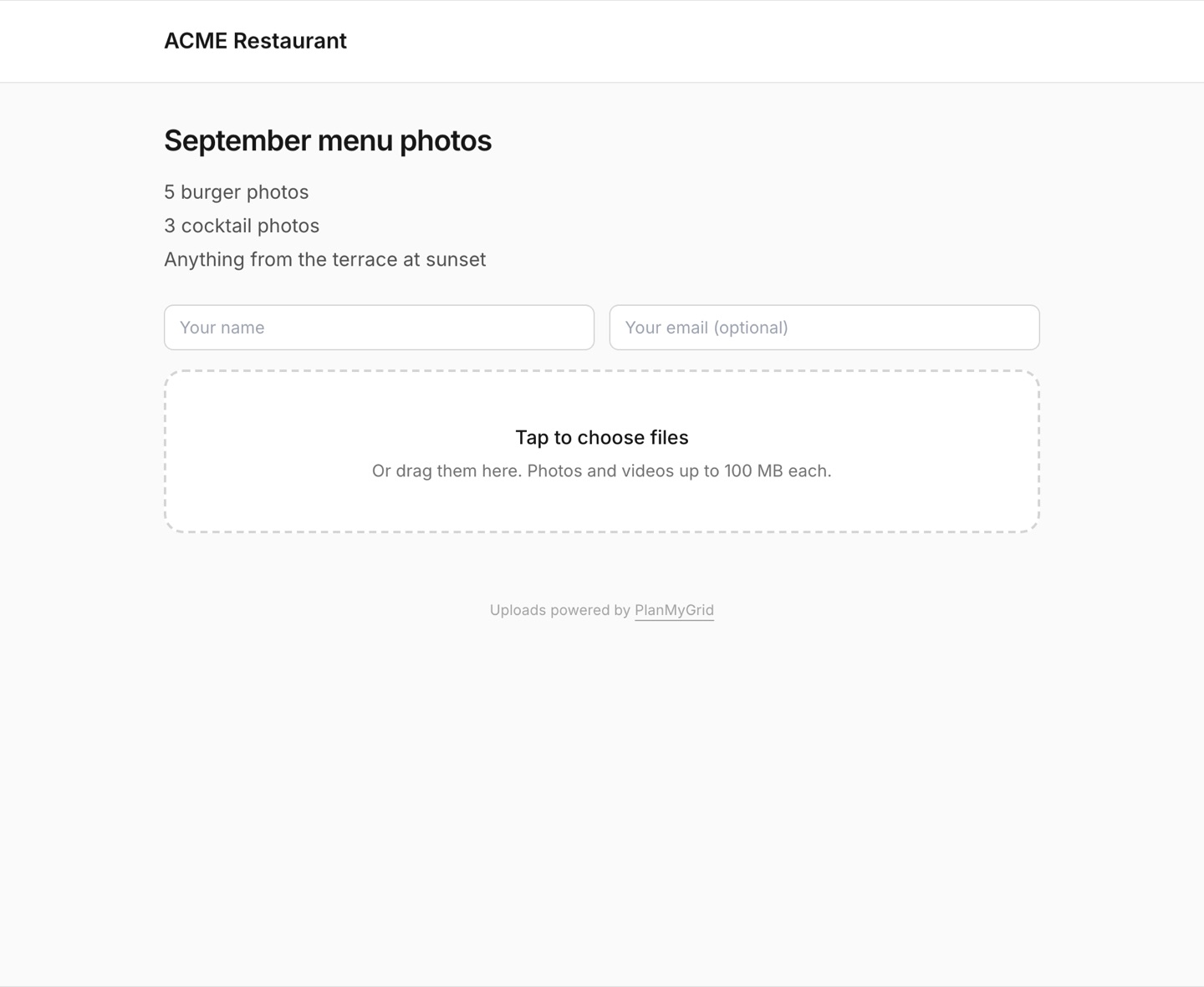
The client page accepts photos (JPEG, PNG, GIF, WebP) and videos (MP4, MOV) up to 100 MB per file. It works on a phone, so a client can send shots straight from their camera roll.
What should you ask the client for?
Most back-and-forth about content comes from a vague request. Put the answers to these questions in the instructions box:
- • What exactly? A shot list beats “send us some photos”. Name products, places or people.
- • Which format? Say if you need vertical video for Reels or Stories, or square and portrait photos for the grid.
- • By when? Set the due date a few days before you need to plan, not the day before posting.
- • Anything to avoid? Old branding, staff who do not want to appear, seasonal items that are gone.
How do you send finished files back to the client?
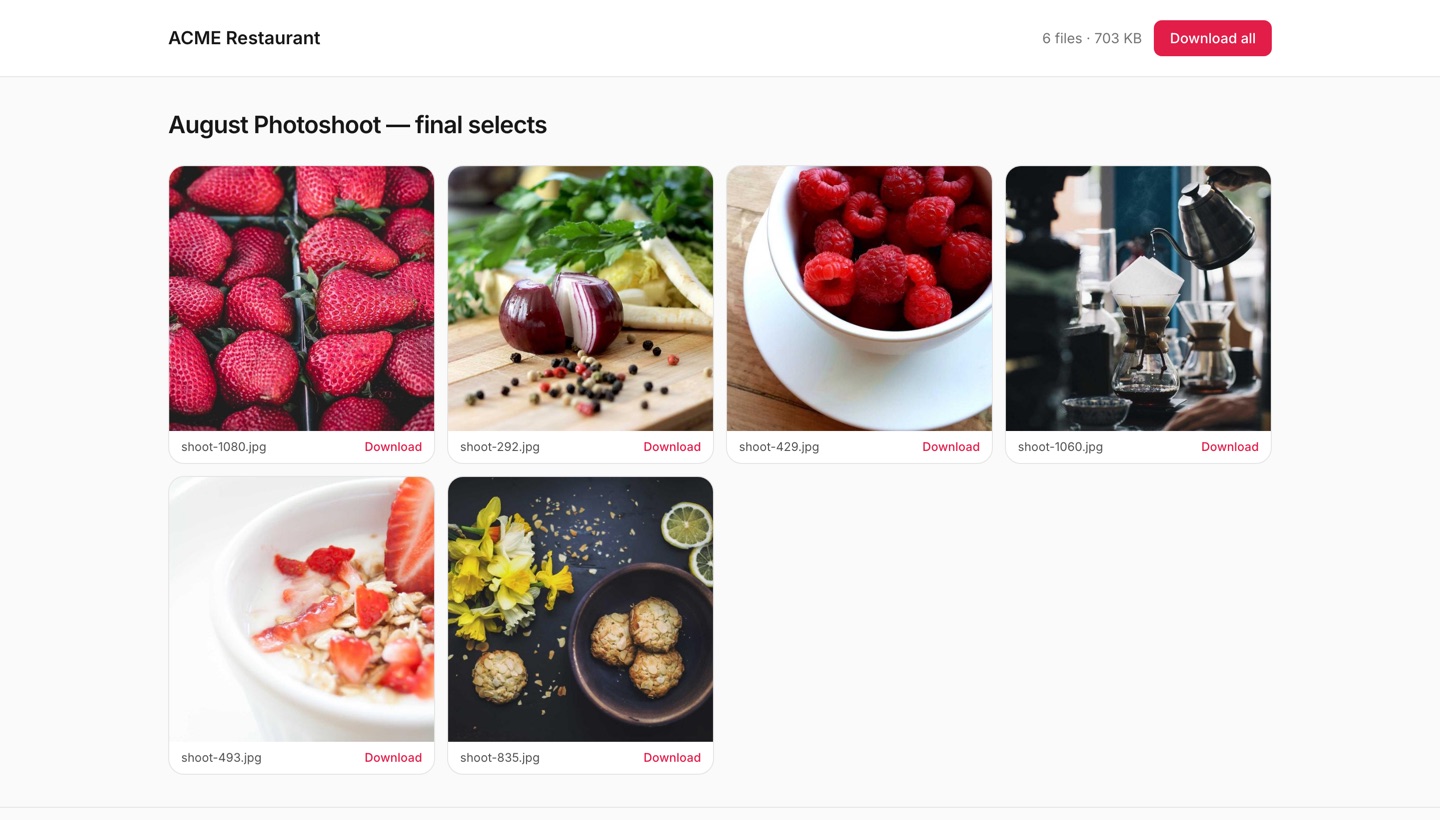
The same problem runs the other way when you deliver edited photos or a full shoot. In PlanMyGrid, a delivery link shares one collection from the client's library. You choose:
- • An optional password (it is never included in the email, so you send it separately).
- • An optional expiry date.
- • View only or download, including download-all as a ZIP.
- • Whether the viewer must enter an email first.
You can see how many times the link was viewed and downloaded.
Which PlanMyGrid plan includes client upload links?
Upload links, delivery links and the client media library are part of Studio and Agency. Pro is for one person planning their own feed.
| Feature | Pro | Studio | Agency |
|---|---|---|---|
| Client upload links (no client account) | No | Yes | Yes |
| Client media library with collections and tags | No | Yes | Yes |
| Delivery links with password and expiry | No | Yes | Yes |
| Workspaces | 1 | Up to 5 | Up to 20 |
| Links on your own domain, no PlanMyGrid footer | No | No | Yes |
| Price per month | $9 | $29 | $99 |
Prices are in USD. See pricing for annual plans and the full feature list.
When is a shared folder good enough?
If you manage one or two clients and plan in a spreadsheet, a shared Dropbox or Google Drive folder per client is fine. The upload link pays off when the files need to end up in the tool where you plan the grid and get approval, because then nobody moves them by hand.
After the files arrive, the next step is the plan itself. Drop them into the client's grid, then send the grid for sign-off. See how to share an Instagram grid preview with a client.
Frequently asked questions
What is the easiest way to get photos and videos from a client?
Send one upload link per request. The client opens it on their phone or computer, types their name, and picks files. No account and no app. In PlanMyGrid the files go straight into that client's media library, in the collection you chose when you made the link.
Does the client need a PlanMyGrid account to upload?
No. A PlanMyGrid upload link works without an account or login. The client enters their name (email is optional) so you can see who sent each file.
What file types and sizes can clients upload?
Photos in JPEG, PNG, GIF or WebP, and videos in MP4 or MOV. Each file can be up to 100 MB.
Can I set a deadline on an upload request?
Yes. Add a due date when you create the link. The client sees it on the page, the request shows as overdue in your list if files have not arrived, and the link stops accepting files once the deadline passes. You can also close a link by hand at any time.
Which PlanMyGrid plan includes client upload links?
Studio ($29 per month, up to 5 client workspaces) and Agency ($99 per month, up to 20). On Agency, with a verified custom domain, the upload page runs on your own domain and carries no PlanMyGrid footer.
How do I send finished files back to the client?
Use a delivery link. Pick a collection, then share it with an optional password, an expiry date, and a choice of view-only or download. The client can download single files or the whole collection as a ZIP, and you can see view and download counts.
Related reading
Agency Client Onboarding Template
Brand kit, account handover and approval cadence
Managing Multiple Instagram Clients
One workspace and one library per client
Share a Grid Preview With a Client
Screenshots, mockups or a live link
Client Approval Workflow for Agencies
Stages, reviewer chains and common pitfalls
Stop chasing client files
Give every client a library, send one upload link per request, and plan the grid from the files that arrive.